IntelliSense Support
The Robot Developer Extensions for ROS 2 provides rich IntelliSense support for ROS message files (.msg, .srv, .action), making it easier to work with ROS interfaces.
Message File IntelliSense
When working with ROS message files, the extension provides several IntelliSense features to help you understand message structures.
Hover Information
Hovering over message types or field names displays detailed information about the type, including its properties.
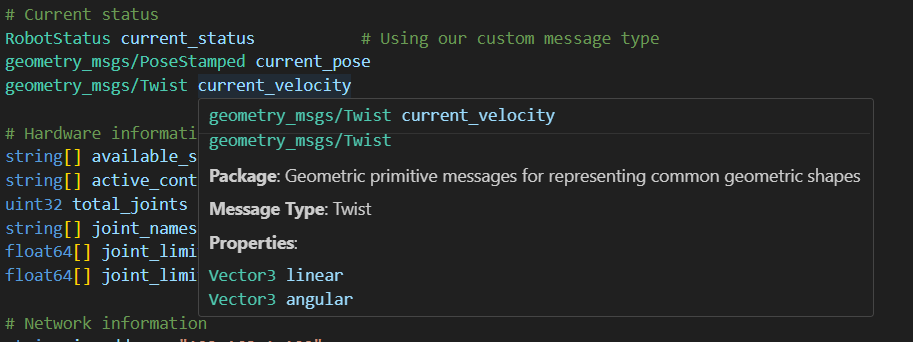
Hovering Over Message Types
When you hover over a message type (such as geometry_msgs/Point, std_msgs/Header, or builtin_interfaces/Duration), the hover tooltip displays:
- Package name: The ROS package containing the message
- Message type: The name of the message
- Properties: A formatted list of all fields in the message, including:
- Field types and names
- Array notation (fixed size
[N]or dynamic[]) - Default values and constants
- Inline comments from the message definition
Example: Hovering over geometry_msgs/Vector3 shows:
geometry_msgs/Vector3

Package: Geometric primitive messages for representing common geometric shapes
Message Type: Vector3

Properties:
float64 x
float64 y
float64 z
Hovering Over Field Names
Hovering over a field name provides comprehensive information about both the field and its type:
- The field declaration with any default values
- Inline comments associated with the field
- Complete type documentation (same as hovering over the type)
- All properties of the field's message type
Example: Hovering over angular_velocity in the line:
geometry_msgs/Vector3 angular_velocity
Shows the field declaration, followed by complete documentation about the Vector3 type and its properties.
Built-in Types
When hovering over ROS built-in types (such as int32, float64, string, etc.), the extension displays:
- Type name
- Description of the type
- Range information where applicable
- Array information if the field is an array
Example: Hovering over float64 shows:
float64

64-bit floating point number (double precision)
Workspace and System Packages
The IntelliSense features work seamlessly with both:
- Workspace packages: Messages defined in your current workspace
- System-installed packages: Messages from installed ROS packages (e.g.,
geometry_msgs,sensor_msgs,builtin_interfaces)
The extension automatically searches for message definitions in: 1. Your workspace folders 2. ROS package paths (obtained from the ROS environment)
This means you get the same rich hover information whether you're working with custom messages or standard ROS messages.
Go to Definition
Press F12 or Ctrl+Click (Cmd+Click on macOS) on a message type to jump to its definition file. This works for both workspace and system-installed packages.
Supported File Types
IntelliSense features are available for:
.msgfiles: ROS message definitions.srvfiles: ROS service definitions.actionfiles: ROS action definitions
C++ and Python IntelliSense
For C++ and Python code that uses ROS, you need to configure IntelliSense to include ROS paths:
C++ IntelliSense Configuration
Run the command ROS2: Update C++ Properties from the command palette to automatically configure C++ IntelliSense with ROS include paths.
This updates your workspace's c_cpp_properties.json file to include:
- ROS installation paths
- Your workspace's package include directories
- Appropriate compiler settings
Python IntelliSense Configuration
Run the command ROS2: Update Python Path from the command palette to configure Python IntelliSense with ROS Python paths.
This updates your workspace settings to include: - ROS Python module paths - Your workspace's Python packages
Tips
- Keep your ROS environment sourced: Make sure your ROS environment is properly sourced so the extension can find all package definitions
- Reload after installing packages: If you install new ROS packages, you may need to reload the VS Code window to pick up the new definitions
- Check hover information during development: Use hover information to quickly verify message structures without switching files
- Combine with Go to Definition: Use hover to preview, then F12 to dive into the full definition when needed